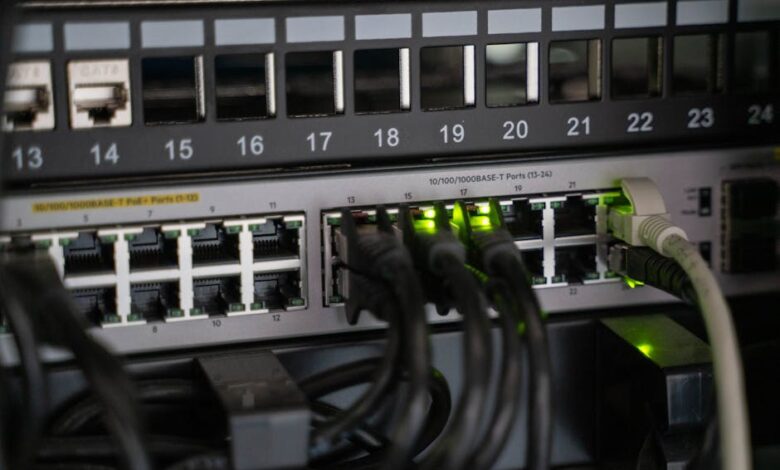
The most common Wi-Fi woes with smart gadgets usually boil down to three simple truths: Your network is either too busy, too far, or just needs a good old-fashioned reboot. A systematic approach, starting with the basics and moving to deeper network tweaks, consistently saves the day. Often, separating your Wi-Fi bands (2.4GHz and 5GHz) or upgrading your network hardware makes all the difference for a stable smart home.
Ah, the smart home. It promises convenience, automation, and a touch of futuristic magic. Until, that is, your smart lights decide to play hide-and-seek, your security camera goes offline, or your thermostat refuses to listen. Wi-Fi connectivity issues are the bane of every smart device owner's existence. It's frustrating, baffling, and often feels like a riddle wrapped in an enigma.
Fear not, fellow tech adventurer! This comprehensive guide walks you through every conceivable fix, from the simplest power cycle to advanced network configurations. We'll get your smart gadgets talking to your router again, ensuring your digital domicile operates smoothly.
Understanding the 'Why': Why Do Smart Devices Act Up?
Before we jump into solutions, it helps to understand why your smart toaster might be giving you the silent treatment. It's rarely malicious; more often, it's a clash of technologies or a congested digital highway.
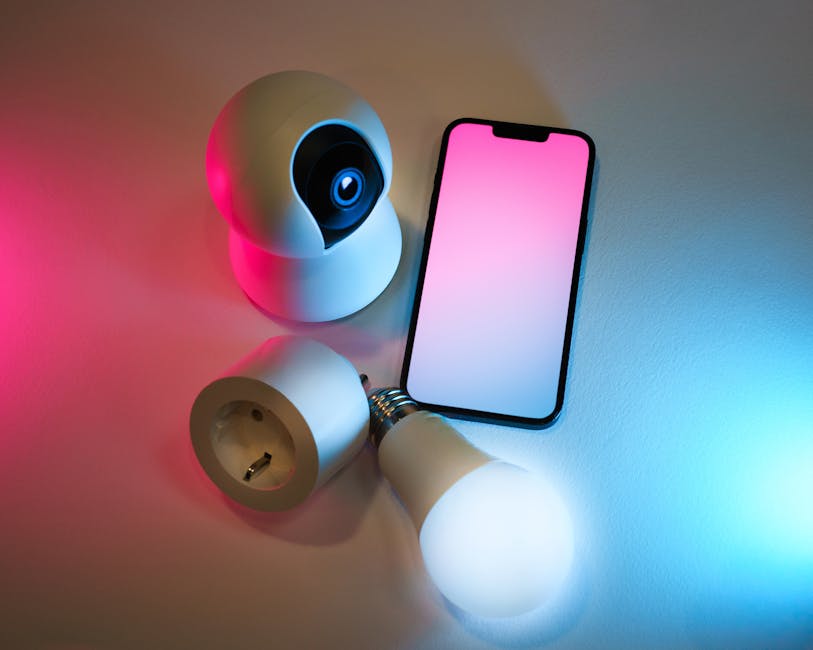
- Signal Interference: Your microwave, cordless phone, or even your neighbor's Wi-Fi can all disrupt your device's connection.
- Network Congestion: Too many devices on one network, especially older routers, can lead to a digital traffic jam.
- Device Firmware Glitches: Software bugs or outdated device firmware can cause erratic connection behavior.
- Router Issues: An aging router, misconfigured settings, or simply one that's overworked can be the root of all evil.
- Distance and Obstacles: Walls, floors, and distance are notorious Wi-Fi signal killers.
- Frequency Band Mismatch: Many smart devices prefer the 2.4GHz band, while your phone might be on 5GHz. If your router isn't smart about managing this, issues arise.
- IP Address Conflicts: Occasionally, two devices on your network might try to claim the same digital address, causing one to drop off.
The Foundational Fixes: Where Everyone Should Start
When in doubt, start here. These simple steps resolve a surprising number of connectivity problems. Think of them as the universal "unplug it and plug it back in" for your smart home.
Reboot Everything (The IT Crowd's Mantra)
Seriously, this is step one. Power cycling clears out temporary glitches and re-establishes connections.
First, unplug your modem, then your router. Wait about 30 seconds. Plug the modem back in and let it fully boot (all lights stable). Then, plug in your router and let it boot. Finally, power cycle the misbehaving smart device.
Check Wi-Fi Password and Network Selection
It sounds basic, but fat-fingering a password or trying to connect to the wrong network happens to the best of us. Double-check your Wi-Fi name (SSID) and password. Remember, smart devices usually need the 2.4GHz network, especially during initial setup.
Move Closer to the Router or Reduce Obstacles
Wi-Fi signal strength diminishes rapidly with distance and obstructions. Try moving the smart device closer to your router temporarily. Thick walls, metal objects, and even large appliances like refrigerators can block signals.
Check for Firmware Updates (Device & Router)
Manufacturers constantly release updates to improve performance and fix bugs. Ensure both your smart device and your router are running the latest firmware. Check your device's app for updates. For your router, log into its administration page (usually via a web browser) to find the update option.
Factory Reset the Smart Device (The Device's Last Resort)
If a specific device is still acting up after basic troubleshooting, a factory reset might be necessary. This erases all its settings and returns it to its out-of-the-box state. You'll then need to set it up again as if it were brand new. Consult your device's manual for specific reset instructions.
Intermediate Troubleshooting: Digging a Bit Deeper
If the foundational fixes didn't stick, it's time to roll up your sleeves and explore your network settings. Don't worry, it's less scary than it sounds.
Network Band Selection: 2.4GHz vs 5GHz
Most modern routers broadcast two Wi-Fi networks: 2.4GHz and 5GHz. The 2.4GHz band offers wider coverage and better penetration through walls but is slower and more prone to interference. The 5GHz band is faster but has a shorter range and struggles with obstacles.
Many smart home devices (plugs, bulbs, older cameras) *only* support 2.4GHz. If your router combines these bands into a single Wi-Fi name, your smart device might struggle to connect. Consider separating them in your router's settings, giving them distinct names like "MyHome_2.4GHz" and "MyHome_5GHz." Then, manually connect your smart device to the 2.4GHz network.
Optimal Router Placement
Your router isn't a decorative piece; it's a signal broadcaster. Place it in a central location, elevated off the floor, away from large metal objects, and not tucked away in a cabinet. A 2023 study by BroadbandNow highlighted router placement as one of the biggest factors in Wi-Fi performance.
Interference Check: Other Electronics
Cordless phones, microwaves, baby monitors, and even fluorescent lights can emit signals on the 2.4GHz band, interfering with your Wi-Fi. Try moving these devices away from your smart gadgets or router. You can also use a Wi-Fi analyzer app (available for smartphones) to visualize network congestion and identify competing signals.
Channel Optimization
Wi-Fi signals travel on channels. If your neighbors are all on the same channel as you, it's like a crowded highway. Your router usually auto-selects a channel, but it's not always the best one. Log into your router's administration page and look for Wi-Fi channel settings. Channels 1, 6, and 11 are generally considered the least overlapping for 2.4GHz. Experimenting with different channels can significantly improve stability.
IP Address Reservation (DHCP Reservation)
Sometimes, your smart device might get a different IP address each time it connects, or worse, conflict with another device. You can assign a static IP address to your smart device within your router's settings (often called DHCP Reservation). This ensures it always gets the same address, preventing conflicts.
Router Settings Review
A few quick checks in your router's interface can resolve lingering issues:
- Security Protocol: Ensure your router uses WPA2-PSK (AES) or WPA3. Older WPA or WEP protocols are insecure and can cause compatibility issues with newer devices.
- MAC Filtering: If you've ever enabled MAC filtering (which restricts which devices can connect), ensure your smart device's MAC address is whitelisted. This is a common oversight.
- Firewall Settings: While crucial for security, overly aggressive firewall settings on your router can sometimes block smart device communication. Temporarily lowering the firewall level (if you know how) might help diagnose if this is the issue, but remember to re-enable it for security.
- Disable "Smart Connect" or "Band Steering": If your router has a feature that automatically steers devices between 2.4GHz and 5GHz bands, sometimes disabling it and manually assigning bands can help with stubborn smart devices.
Advanced Strategies: When Basic Doesn't Cut It
If you've tried everything above and your smart home still feels more like a dumb home, it might be time for more robust solutions or a hardware upgrade.
Mesh Wi-Fi Systems: The Future of Home Networks
Mesh systems are fantastic for larger homes or those with dead spots. Instead of a single router, multiple units work together to create a seamless, strong Wi-Fi network throughout your property. They intelligently handle band steering and device management, often resolving connectivity issues for smart devices across wide areas.
Wi-Fi Extenders/Repeaters: A Band-Aid Solution
Extenders grab your existing Wi-Fi signal and re-broadcast it. While they can boost coverage, they often halve bandwidth and introduce latency. They're a decent option for single dead zones but not ideal for multiple smart devices that require consistent, high-bandwidth connections.
Powerline Adapters: Ethernet Over Electrical Wires
These adapters use your home's electrical wiring to extend your network. One adapter plugs into an outlet near your router (and connects via Ethernet), and another plugs into an outlet near your smart device. While typically used for wired connections, some models offer a Wi-Fi hotspot from the remote adapter. It's a niche solution, but effective where Wi-Fi struggles.
Router Upgrade: Sometimes, It's Just Old Hardware
If your router is several years old, it might not be up to the task of handling numerous smart devices, streaming, gaming, and work-from-home demands simultaneously. Newer routers support Wi-Fi 6 (802.11ax) or even Wi-Fi 6E, offering better speeds, capacity, and efficiency, especially for a busy smart home. A 2024 report by Consumer Tech found that upgrading a router every 3-5 years significantly improves smart home stability.
Quality of Service (QoS): Prioritizing Your Smart Life
Many modern routers include QoS settings. This allows you to prioritize certain types of traffic or specific devices. You could, for instance, give your security cameras or smart hub priority to ensure they always have enough bandwidth, even when others are streaming 4K video.
Factory Reset the Router (The Nuclear Option)
If all else fails, and you suspect your router's configuration is hopelessly tangled, a factory reset might be the answer. Be warned: this wipes *all* your custom settings, including your Wi-Fi name, password, and any port forwarding rules. You'll need to reconfigure your entire network from scratch. Only attempt this if you're comfortable with router setup.
Prevention is Better Than Cure
Once you've achieved smart home harmony, here's how to keep it that way:
- Regular Updates: Keep both your smart devices and your router updated.
- Good Router Placement: Maintain an optimal, central location for your router.
- Network Hygiene: Periodically check for unknown devices on your network and change your Wi-Fi password if you suspect unauthorized access.
- Monitoring Tools: Use Wi-Fi analyzer apps to check signal strength and interference spots occasionally.
Do's and Don'ts for Smart Device Wi-Fi Troubleshooting
| Action | Do's (Recommended Approach) | Don'ts (Avoid These Pitfalls) | Typical Impact |
|---|---|---|---|
| Rebooting | Reboot modem, then router, then device, waiting for each to fully start. | Don't just reboot the smart device without cycling the network hardware first. | High (Resolves many transient issues) |
| Router Placement | Place router centrally, elevated, away from obstructions and interference sources. | Don't hide your router in a cabinet, behind a TV, or in a basement corner. | Medium to High (Improves signal strength and coverage) |
| Wi-Fi Bands | Consider separating 2.4GHz and 5GHz SSIDs, especially for setup. | Don't force 5GHz connections on older smart devices that only support 2.4GHz. | High (Critical for device compatibility and stability) |
| Firmware Updates | Regularly check and install updates for both devices and your router. | Don't ignore update notifications; they often contain critical bug fixes. | Medium (Fixes bugs, improves performance) |
| Network Upgrades | Invest in a mesh system for large homes or consider a new, higher-capacity router. | Don't rely on a decade-old router to handle a modern smart home with dozens of devices. | High (Foundation for a robust smart home) |
Solving smart device Wi-Fi issues can feel like a labyrinth, but with a systematic approach, you'll find your way out. Start with the simplest fixes, move to network configurations, and consider hardware upgrades only if necessary. Patience is your best tool. Soon, your smart home will be back to serving you, seamlessly and reliably.
Discover more from GTFyi.com
Subscribe to get the latest posts sent to your email.